Table Editing Mode
Table editing mode lets you select and configure individual seats within a table object in the schema editor.
Entering table edit mode
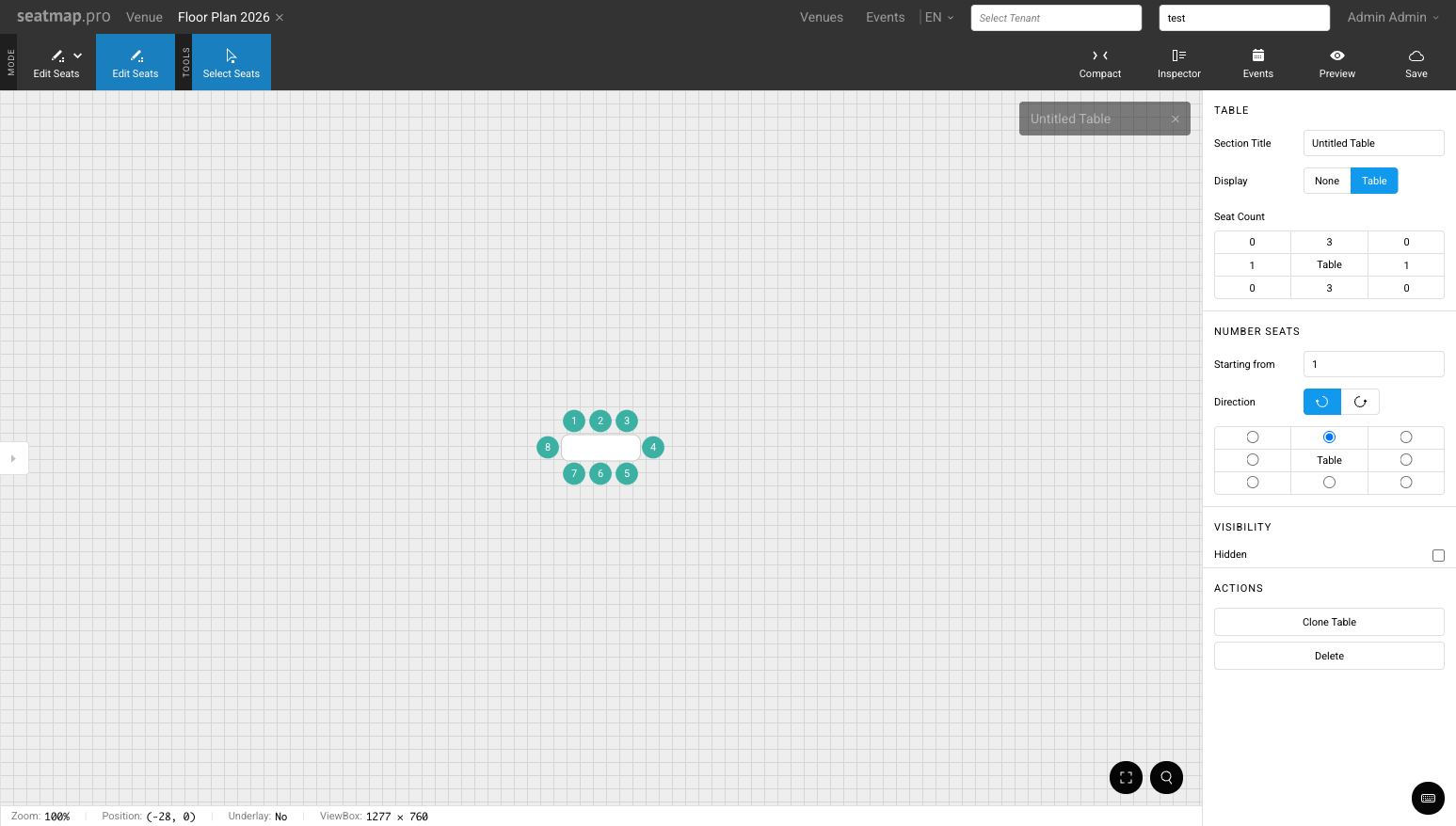
Double-click a table in the schema editor to enter table editing mode. The table expands visually so that each seat becomes individually selectable.
Selecting seats
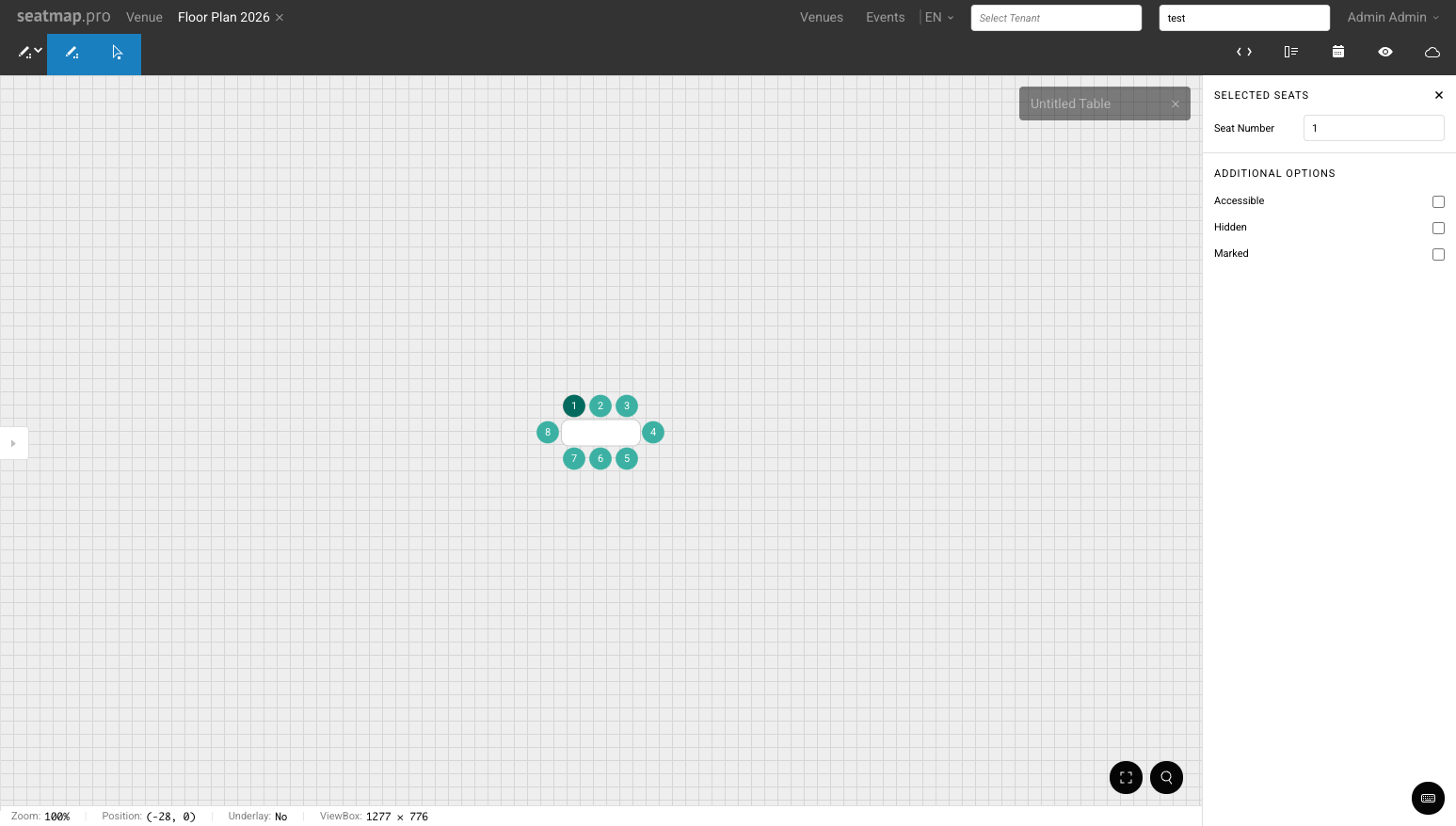
Click a seat to select it and open its properties in the right panel. Click the same seat again to deselect it. Click additional seats to add them to the selection — no modifier key is required for multi-select.
Seat properties panel
When one or more seats are selected in table editing mode, the right panel shows three controls:
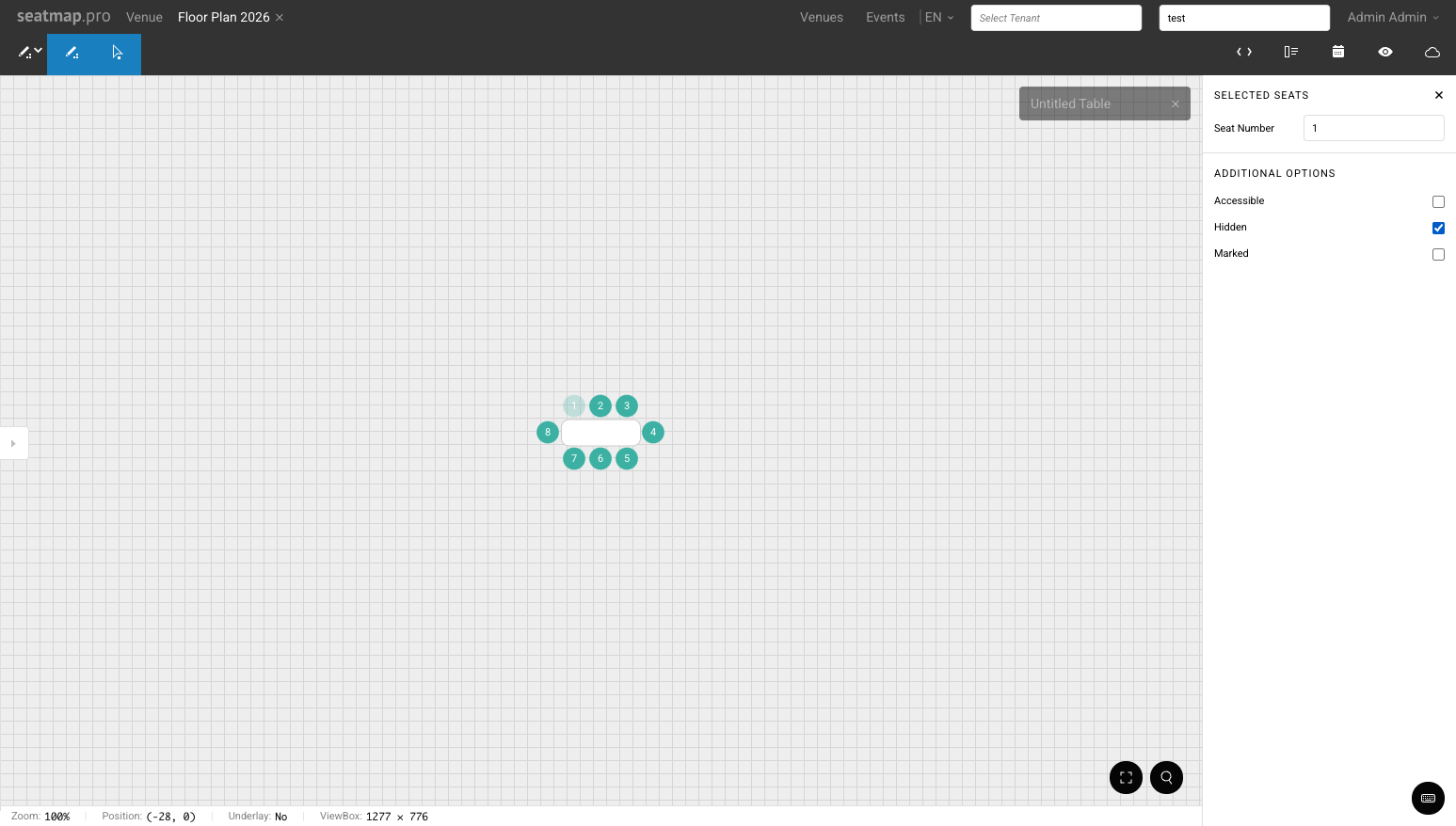
- Hidden — removes the seat from the booking API and the renderer. Customers cannot see or select a hidden seat. If all seats in a table are hidden, the table outline is also removed from the renderer.
- Accessible — marks the seat as an accessible seat.
- Marked — marks the seat with a custom marker.
Exiting table edit mode
Click on any empty area of the canvas outside the table. This deselects the table and returns to the normal schema editing mode.