Multi-tenant integration (single sign-on)
Preface
Multi-tenancy is a common approach for any cloud based application. Single instance strategy for different organizations is always more effective in terms of maintenance and costs.
The Editor component aims at helping to create and manage the visual representation of a seating chart. This document covers all cases when a ticketing platform provides multi-tenancy and desired integration model shall support that kind of scenario.
Goals
The primary goal is to support multi-tenant models seamlessly between two platforms. seatmap.pro allows organizing separated workspaces for different organizations. To achieve the existing goals, we need to implement SSO functionality among two platforms.
Tenants might be represented as some organizations or clients in terms of ticketing software.
Integration
Definitions
Here and below, we are going to use the following terms:
- Ticketing Platform - TP - is a platform to integrate
- Seatmap.pro - SMP - the platform that consists of two main components:
- Editor - UI application for schemas editing
- Booking - API component of the platform handling authentication and organization management
Model
We link users to a specific tenant, so we are defining some scope or restriction to separate access between two or more organizations.
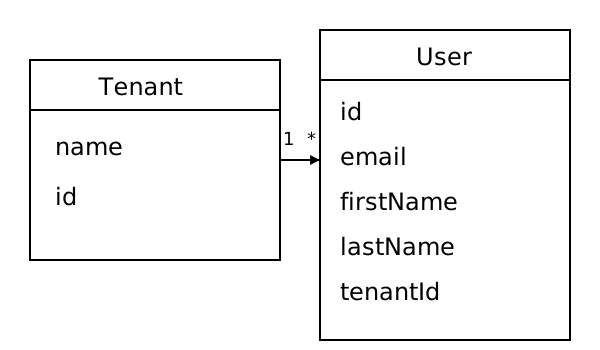
Basically, a single tenant or organization can contain multiple users.
Main flow
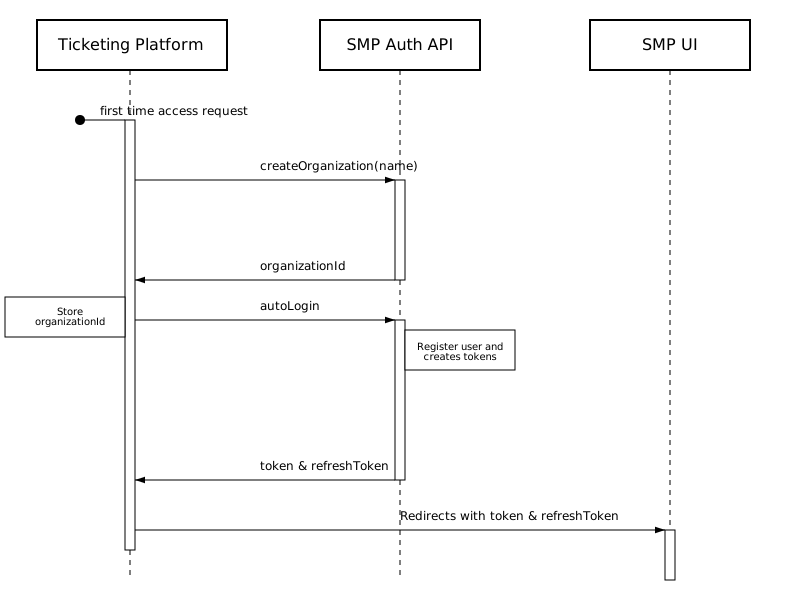
Let’s consider the initial scenario when a TP authenticated user is trying to open SMP Editor UI. To skip the authentication step on the SMP side, a user shall have authentication tokens. To connect two platforms, we need to conduct the following steps:
- To sync up organizations, TP identifies the current user’s organization and checks that it already exists on the SMP Booking side and has some ID.
- In case if an organization doesn’t exist on the SMP Booking side, TP shall create it first with the organization management API
- When the organization id is known, TP is ready to request a single-use session code with the autoLogin method
- As a result of autoLogin, TP opens up SMP Editor UI with the retrieved code; the Editor exchanges it for a session when it loads. Legacy integrations may instead retrieve and pass the token and refreshToken directly
Creating an organization
To create an organization programmatically, you need to call the management API on the SMP Booking side:
POST /api/private/management/v2.0/organizations/ HTTP/1.1
Host: {BOOKING_HOST}
Content-Type: application/json
X-API-Key: {tenantToken}

{
    "name": "Organization Name",
    "email": "jd@seatmap.pro",
    "firstName": "John",
    "lastName": "Doe",
    "password": "{INITIAL_PASSWORD}",
    "autologinEnabled": true
}
This endpoint requires your tenant token in the X-API-Key header; an organization token is refused. The response will contain the created organization with its ID, which you’ll need for subsequent operations. Set autologinEnabled to true so the organization accepts the autologin request below; it is false when omitted.
The organization name and the administrator’s details are top-level fields of one object. The email identifies the organization’s administrator account, and matching ignores letter case. If no account uses the email, one is created with the supplied password. An existing account becomes the administrator only when it is the only account with that email, belongs to at least one organization, every organization it belongs to is owned by the tenant your X-API-Key belongs to, and it holds no platform administration role (super admin or global admin); it keeps its own password, and the supplied password is not applied. For any other existing account the request fails with 409 Conflict and the error code ACCOUNT_EMAIL_IN_USE, and nothing is created: use a different email for that organization.
Auto login request
Auto login method allows getting a user session. This is now handled by the SMP Booking system:
POST /api/public/v2.0/autologin/ HTTP/1.1
Host: {BOOKING_HOST}
Content-Type: application/json
Content-Length: 164

{
    "login": "jd@seatmap.pro",
    "firstName": "John",
    "lastName": "Doe",
    "token": "{PRIVATE_KEY}",
    "responseType": "code"
}
With "responseType": "code" (recommended) the response contains a single-use session code instead of session tokens. The code is valid for one exchange and expires after 60 seconds:
{
  "success": true,
  "code": "{ONE_TIME_CODE}",
  "expiresIn": 60
}
If responseType is omitted, the response carries the session tokens directly:
{
  "user": {
    // User information
  },
  "success": true,
  "token": "eyJhbGciOiJIUzI1NiIsInR5cCI6IkpXVCJ9...",
  "refreshToken": "eyJhbGciOiJIUzI1NiIsInR5cCI6IkpXVCJ9..."
}
Autologin accepts organization accounts only. An account with a platform administration role (super admin or global admin) gets HTTP 403 and must sign in to the Editor with its own password.
Opening the Editor application
With the session code, open the SMP Editor application in an iframe by adding the code as the ssoCode URL parameter. The Editor exchanges the code for a session automatically when it loads:
<iframe
  src="{EDITOR_HOST}/app/?ssoCode={ONE_TIME_CODE}"
  width="100%"
  height="800px"
  frameborder="0"
>
</iframe>
Request a fresh code from the autologin endpoint each time you open the Editor – a code is consumed by the first load and cannot be reused.
If you used the default token response, add the token and refreshToken as URL parameters instead:
<iframe
  src="{EDITOR_HOST}/app/?token={token}&refreshToken={refreshToken}"
  width="100%"
  height="800px"
  frameborder="0"
>
</iframe>
Example
Let’s say you need to open the Editor for a specific venue schema at URL https://editor.seatmap.dev/app/venues/2/schemas/150, and the autologin response contained the code k3P9wXbF2tR8yQ6mA1sD4gJ7hL0cV5nZ8xE2uT6iO4q.
The complete URL to use in your iframe would be:
https://editor.seatmap.dev/app/venues/2/schemas/150?ssoCode=k3P9wXbF2tR8yQ6mA1sD4gJ7hL0cV5nZ8xE2uT6iO4q
And the complete iframe implementation would be:
<iframe
  src="https://editor.seatmap.dev/app/venues/2/schemas/150?ssoCode=k3P9wXbF2tR8yQ6mA1sD4gJ7hL0cV5nZ8xE2uT6iO4q"
  width="100%"
  height="800px"
  frameborder="0"
>
</iframe>