Frequently asked questions
General
What is Seatmap.pro?
Seatmap.pro is an enterprise platform for creating, managing, and rendering interactive venue seating charts. It provides a visual Editor for designing seat maps, a high-performance Booking Renderer SDK (@seatmap.pro/renderer on npm) for WebGL-based seat selection, and a Booking API v2 for real-time availability and sales integration. Seatmap.pro is a visualization layer only – it never stores your prices, sales data, or payment information. Your ticketing system remains the single source of truth.
What types of venues does Seatmap.pro support?
Seatmap.pro supports venues of all sizes and configurations: concert halls, stadiums, theaters, arenas, conference centers, sports venues, and any space with assigned or general-admission seating. The Editor handles numbered seats, general admission (GA) sections, tables, standing areas, and mixed layouts. You can import existing SVG floor plans and overlay seating on top of them.
How many seats can Seatmap.pro handle?
The Booking Renderer uses WebGL acceleration and renders 10,000+ seats at 60fps in modern browsers. The Editor can create schemas with tens of thousands of seats. For very large venues (30,000+ seats), the renderer automatically switches between detail levels (individual seats vs. section overviews) to maintain smooth performance.
What frameworks does the renderer support?
The Booking Renderer SDK is framework-agnostic. It works with React, Vue, Angular, Svelte, or vanilla JavaScript. Install it via npm install @seatmap.pro/renderer and mount it on any HTML container element. See the Renderer Getting Started guide for integration examples.
Integration
How do I integrate Seatmap.pro with my ticketing system?
Integration follows four steps: (1) Design a seat map in the Editor, (2) Create an event via the Booking API v2 and link it to the schema, (3) Assign prices to seats or sections, (4) Embed the Booking Renderer in your sales page using the TypeScript SDK. The renderer reads seat availability and prices from the Booking API when the event loads, and seats are locked and sold through the Booking API. See the Integration guide for a detailed walkthrough, or read Why API Integration is Crucial for Ticketing Platforms for a broader perspective.
What is the Booking API v2?
The Booking API v2 is a REST API for managing events, pricing, and the seat booking lifecycle. It supports operations like creating events, assigning prices, locking seats, confirming sales, and unlocking. The API base URL for cloud deployments is https://booking.seatmap.pro/api/private/v2.0/. Full reference is available in the API v2 documentation.
Can I embed the Editor in my application?
Yes. The Editor can be embedded in your application via an iframe. You can control which tools and modes are visible, pass authentication tokens for SSO autologin, and communicate with the editor via the postMessage API. See the Iframe API and Iframe Communication guides.
Pricing
What pricing plans are available?
Seatmap.pro offers three plans: Cloud (SaaS, from EUR 100/month, up to 170,000 seats/year), On-Premise (self-hosted, EUR 20,000/year or EUR 60,000 perpetual license, unlimited seats), and Custom (tailored integration for enterprise needs). There are no per-seat or per-booking fees. See the pricing section on the homepage.
Is there a free trial?
Contact us via the demo request form to arrange a personalized demonstration and discuss trial options. We offer guided onboarding to help you evaluate the platform with your own venue data.
Deployment
Can I deploy Seatmap.pro on my own servers?
Yes. The On-Premise plan provides Docker images and Helm charts for self-hosted deployment on your own Kubernetes infrastructure. This gives you full control over data residency, network isolation, and infrastructure configuration. See the On-Premise deployment guide and Helm chart documentation. For a comparison of deployment models, see SaaS, On-Premise, and Managed On-Premise.
What are the system requirements for on-premise deployment?
On-premise deployment requires Kubernetes (1.24+), Helm 3, PostgreSQL 14+, and Redis 7+. The platform runs as a set of microservices: Editor Service (Java 21, Spring Boot), Booking Service (Java 21, Spring Boot), Converter Service (Node.js 22), and the frontend applications. Minimum recommended resources are 4 CPU cores and 8 GB RAM for a production workload.
Security
How does Seatmap.pro handle data security?
Seatmap.pro is a visualization platform only. It does not process payments, store transaction data, or hold pricing information on its servers. Your ticketing system remains the single source of truth for all business-critical data. Communication between the renderer and the Booking API uses HTTPS with HSTS enforcement. On-premise deployments give you complete control over data residency and network policies.
Is Seatmap.pro GDPR compliant?
Seatmap.pro follows GDPR-aligned data practices. The platform collects minimal personal data (editor user accounts only). For cloud deployments, data is hosted in EU data centers. On-premise deployments keep all data within your own infrastructure. See our Privacy Policy for details.
Editor
I cannot add a user
An email address can belong to only one Editor account. If the email you enter for a new user already belongs to an account, in your organization or in another one, Editor reports that an account with this email already exists and does not create a new one.
To give that person access, a super admin or global admin uses the Admin Panel. User Management cannot assign or enable accounts, so an organization admin asks one of them. If no one in your company has either role, contact Seatmap.pro support.
- Select Admin Admin -> Admin Panel.
- Open the Organizations tab and click the organization.
- On the Users tab, find the person:
- Listed with the status Enabled: they already have access.
- Listed with the status Disabled: click Enable.
- Not listed: click Assign User, find the user, and click Assign User. To make them an organization admin, change their role in the Role column.
On this tab, a super admin can assign an account that belongs to an organization in the same tenant, and can enable an account that belongs only to this organization. Assigning an account from another tenant or one that belongs to no organization, and enabling an account that also belongs to other organizations, require a global admin. Assigning does not enable a disabled account.
I want to disable the S3 support
If you do not want to use bitmap graphic instead of vector graphic, disable S3 by setting SEATMAP_STORAGE_TYPE=local (see Image Converter configuration guide).
I want to set colors for prices
You can change the price colors in both Booking Renderer and Admin Renderer.
Booking Renderer
To change the price color theme in Booking Renderer, go to settings->theme->priceColors.
Basic usage:
const settings: IBookingRendererSettings = {
  theme: {
    priceColors: [
      ['#FF0000', '#00FF00', '#0000FF', '#FFFF00', '#00FFFF', '#FF00FF'],
    ],
  },
};
Basically, you can configure a single array of price colors. If the number of price items for an event exceeds the number of colors in the array, the system will reuse the available colors.
To avoid duplicate colors for different prices, we recommend you to have the longest possible array of colors.
Advanced usage:
const settings: IBookingRendererSettings = {
  theme: {
    priceColors: [
      ['#FF0000', '#00FF00', '#0000FF', '#FFFF00', '#00FFFF', '#FF00FF'],
      ['#FF0000', '#00FF00', '#0000FF', '#FF00FF', '#00FFFF'],
      ['#FF0000', '#00FF00', '#0000FF'],
      ['#FF0000', '#0000FF'],
      ['#0000FF'],
    ],
  },
};
While rendering a schema, we will fetch the number of price items using the API and will pick the appropriate list of colors. For example, if the API returns 5 price items, we will pick the array of 5 colors from these settings:
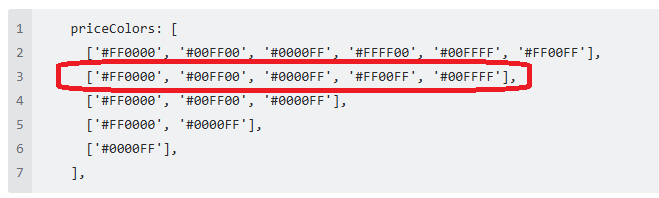
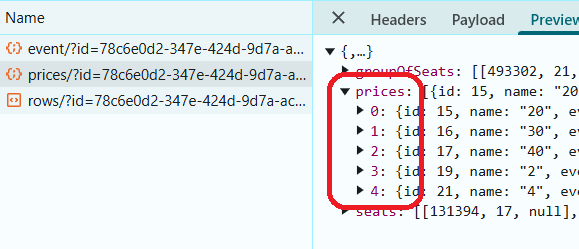
In this scenario, if we do not find an array exactly matching the returned number of price items, we will use the first one as a fallback. If the first array is not long enough either, the system will reuse the available colors. That’s why we recommend you to keep the longest array first.
Admin Renderer
In Admin Renderer, you can set different color categories for different seats.
To set a color using the setSeatsCategory() method, pass the following:
- a list of seats (usually selected manually by the administrator)
- a category number
- a new color
renderer.setSeatsCategory(seats, 3, '#E50914');
This color will not be saved in the database and is for administrator use only.
Also, you can go to settings->theme->colorCategories and set the default colors for Admin Renderer as described above.
I want to disallow deleting seats that are locked and sold
Now you can disallow deleting seats with assigned prices if their state is Locked and Sold at the tenant or organization level.
In Editor, when you try to delete a seat with an assigned price in the Locked and Sold state, a warning will appear but you still can decide to delete the seat (the request will be sent to the backend with forceDelete=true).
But if you set prohibitDeleteSeats at the tenant or organization level, the deletion request will fail.
To enable this setting, use the POST /api/organization/config/ method with orgId as an additional parameter.
{
"prohibitDeleteSeats":"true/false"
}
The endpoint is only available to users with the
ROLE_SUPER_ADMINrole.
To get information from the backend, use the GET /api/organization/current method or login methods.
I want to hide certain menu items when opening Editor in an iframe
When you open Editor in an iframe, you can hide the menu items you do not need.
To do this, when you are calling the iframe, add to the address line the hidden parameter specifying the menu items you want to hide.
For example, to hide the Pricing mode, Select and Label tools, and Line and Polygon shapes, add the following:
?hidden=pricing,select,label,line,polygon
List of menu items that can be hidden
  schema: 'mode.schema',
  underlay: 'mode.underlay',
  venueShape: 'mode.venueShape',
  pricingZones: 'mode.pricingZones',
  pricing: 'mode.pricing',
  section: 'mode.section',

  select: 'tool.select',
  seatRows: 'tool.seatRows',
  table: 'tool.table',

  shape: 'tool.shape',
  rect: 'tool.shape.rect',
  circle: 'tool.shape.circle',
  line: 'tool.shape.line',
  polygon: 'tool.shape.polygon',

  label: 'tool.label',
  selectSeats: 'tool.selectSeats',
  selectRows: 'tool.selectRows',
  addSeat: 'tool.addSeat',
  numberSeats: 'tool.numberSeats',
  selectSections: 'tool.selectSections',
  save: 'tool.save'
I want to enable the preview in Editor
To enable the preview functionality in Editor, set the following parameters:
services.preview.url - an address for the preview service. Default: http://localhost:5000/
services.preview.api-key - the shared secret the converter expects as a bearer token. The Helm chart generates and wires it; set it by hand only when the converter runs outside the chart.