Seat Name Conflict Detection
The venue editor checks that each seat in a row has a unique name. When two or more seats in the same row share a name, the editor shows warnings on the canvas, in the Inspector panel, and in the status bar so you can quickly find and fix conflicts.
How it works
Validation runs automatically whenever you rename seats, renumber a section, add or remove seats, or load a schema. Conflicts are highlighted visually but never block your work – you can continue editing and save at any time.
Canvas warnings
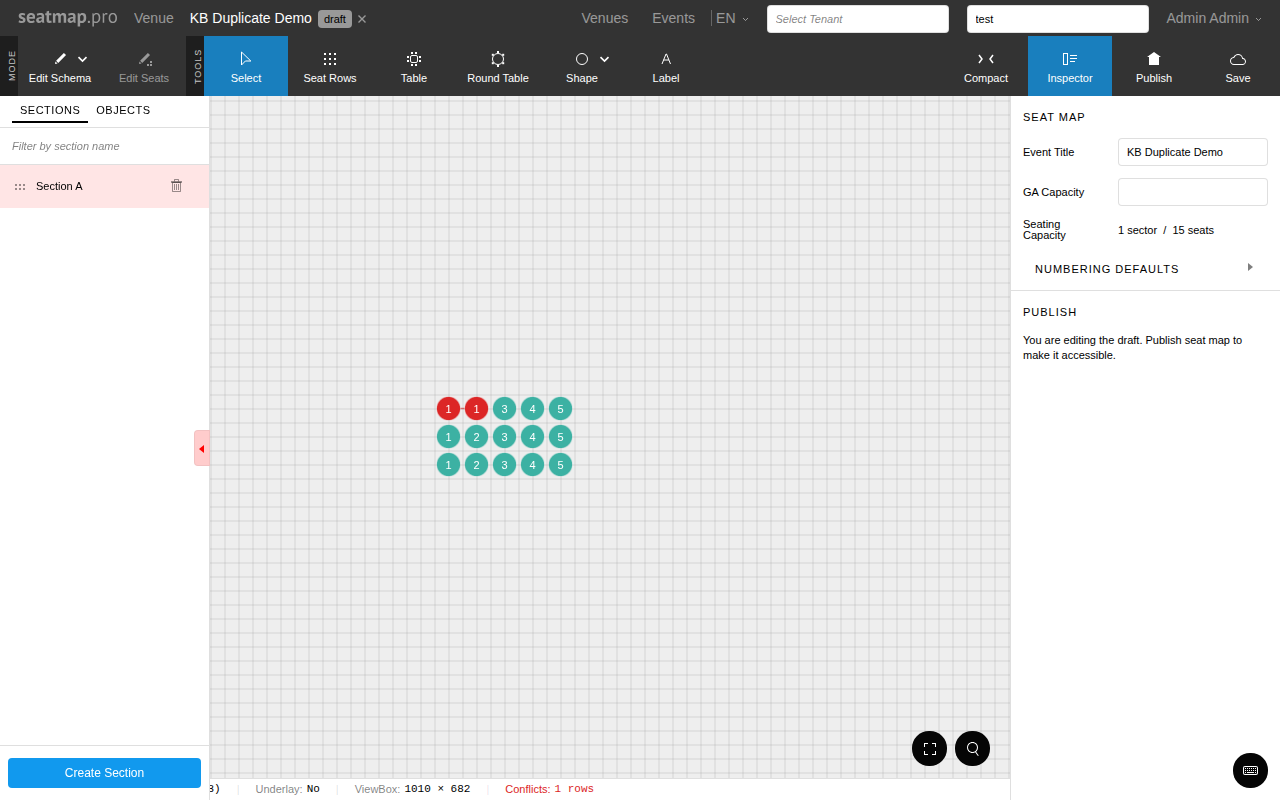
Seats with duplicate names are highlighted in red on the canvas. Dotted arcs connect the conflicting seats within each row, making it easy to spot which seats share a name even in dense layouts.
Inspector panel
The Inspector panel gives you a detailed view of all conflicts.
- The Inspector button in the toolbar turns pink when any conflicts exist. The Inspector opens automatically the first time a conflict is detected.
- In the Sections tab, sections with conflicts are highlighted in red so you can see at a glance which areas need attention.
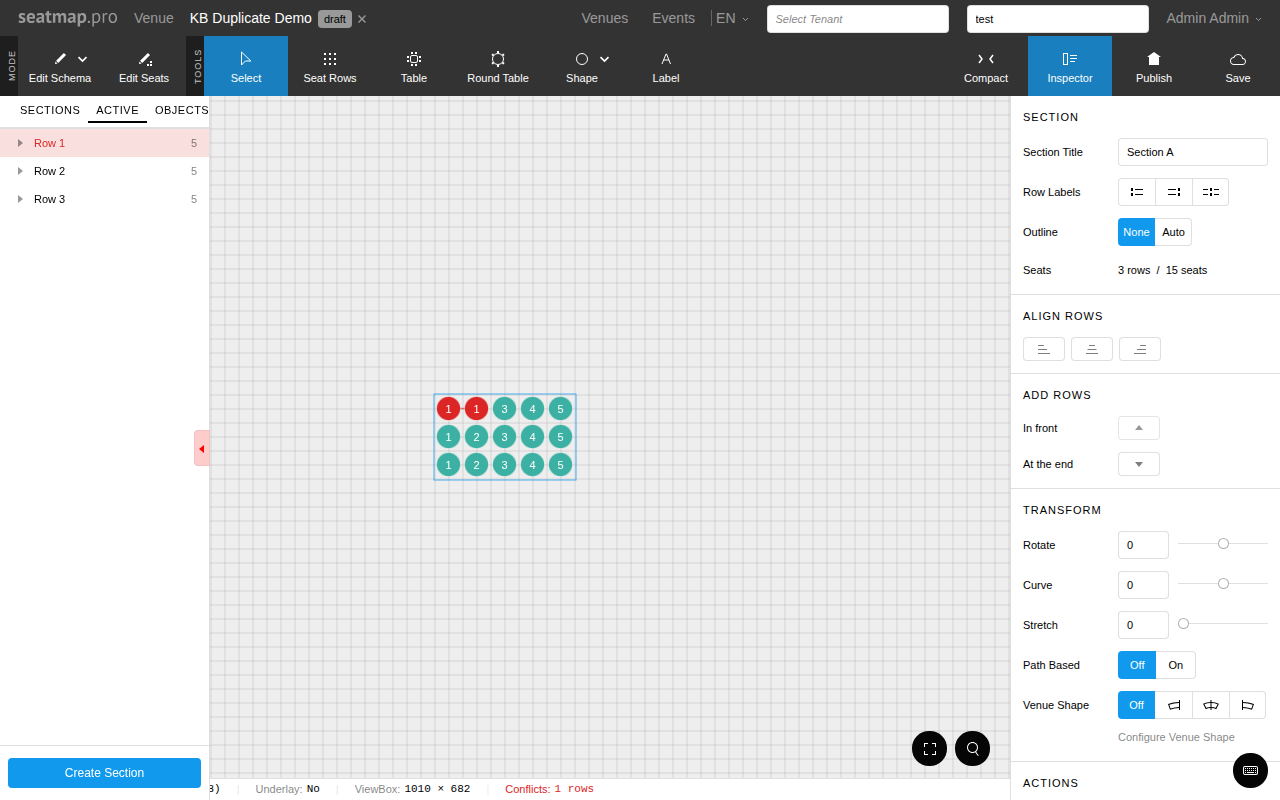
- In the Active tab, rows with duplicates show a red background, and individual conflicting seats display a red dot.
Status bar
The status bar at the bottom of the editor shows a red Conflicts indicator with the number of affected rows. Click the indicator to open the Inspector panel.
Resolving conflicts
To fix a duplicate seat name:
- Click the Conflicts indicator in the status bar or open the Inspector panel.
- Find the affected section and row.
- Select the conflicting seat on the canvas or in the Inspector.
- Rename the seat in the sidebar to give it a unique name within its row.
You can also use the Number Seats tool to renumber an entire section at once, which automatically assigns unique names to all seats.