Round and Elliptical Tables
The venue editor supports round and elliptical table shapes in addition to rectangular tables. Seats are always distributed evenly around the table, so your layout looks balanced regardless of the table shape.
Adding a round table
Click the Round Table button in the toolbar. A new round table appears at the center of the canvas with 6 seats evenly spaced around it. Drag it to the desired position.
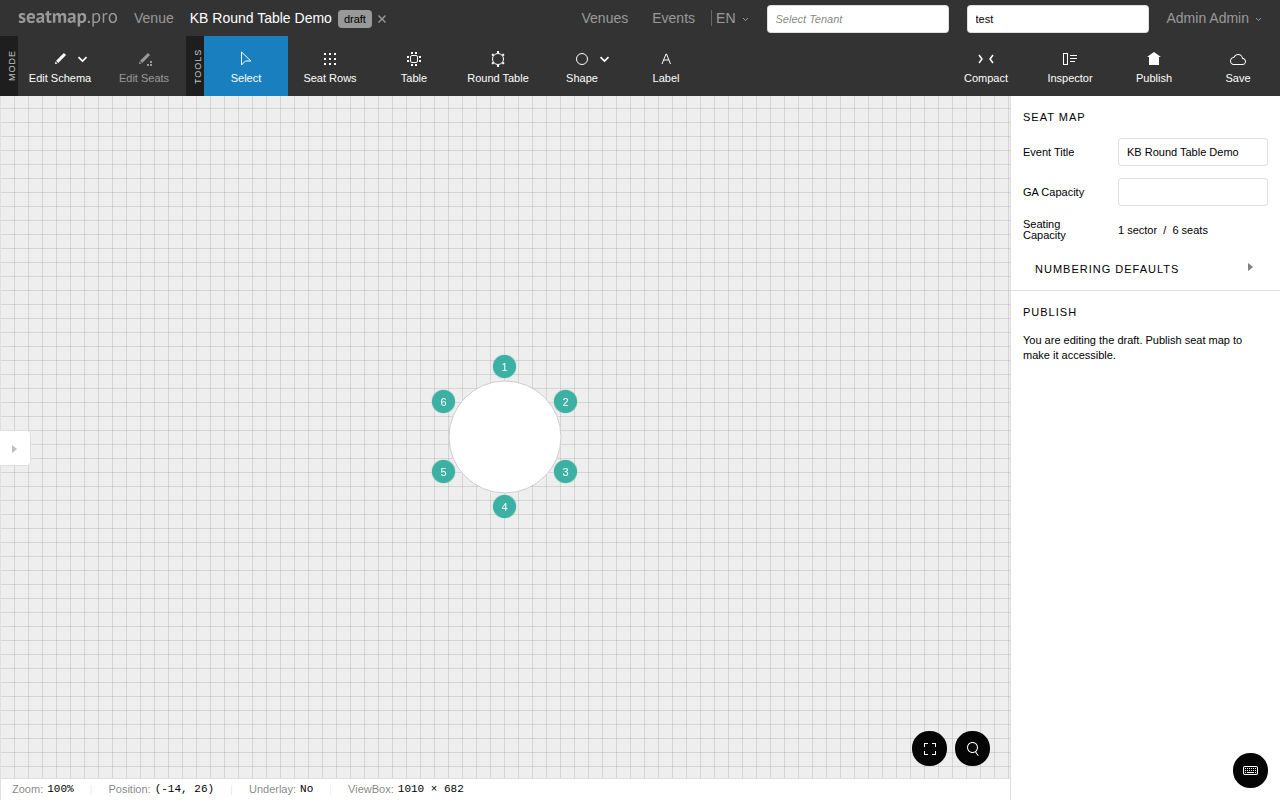
Table panel controls
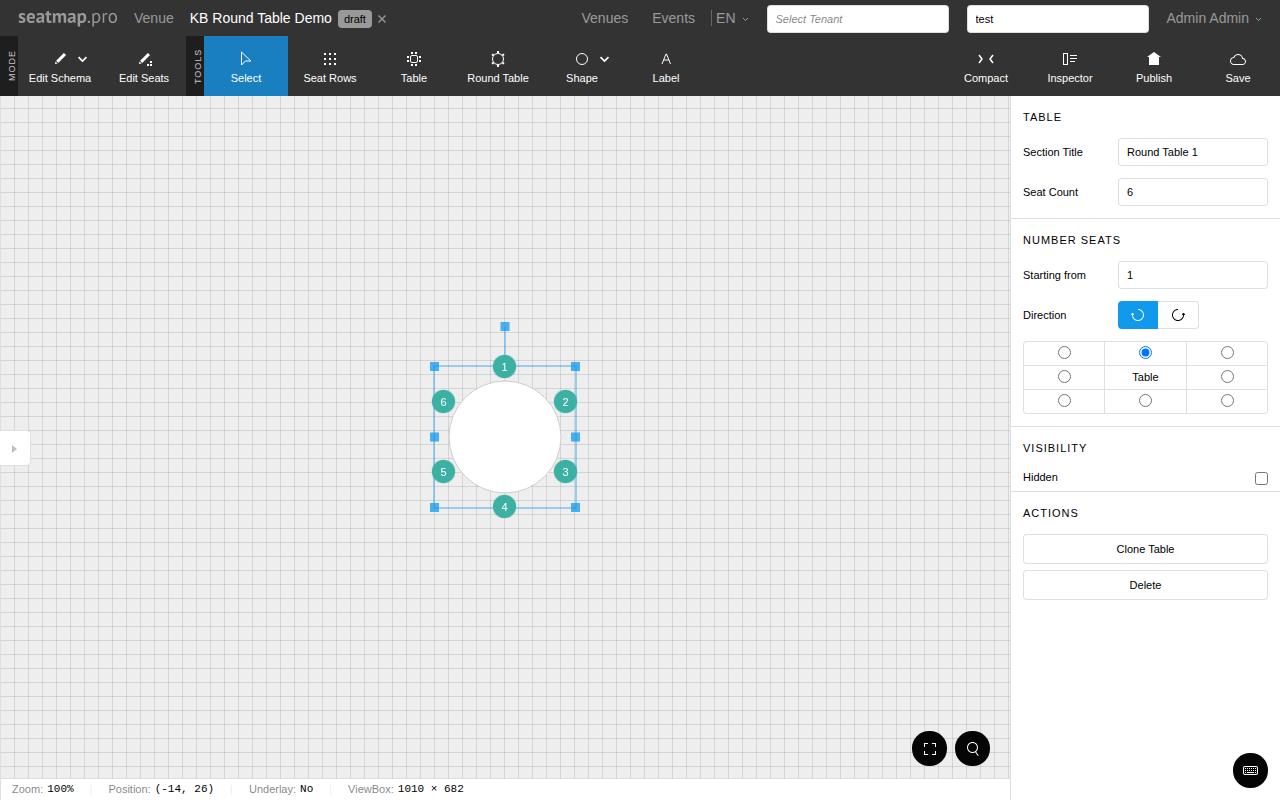
Select a round table to open the table panel in the sidebar. The panel shows:
- Seat count – set how many seats are placed around the table.
- Starting position – choose where the first seat is placed (top, right, bottom, left, or any diagonal).
- Numbering direction – clockwise or counter-clockwise.
- Table name – optional label for the table.
- Display mode – switch between Round, Table (rectangular), and None (seats only).
Creating elliptical tables
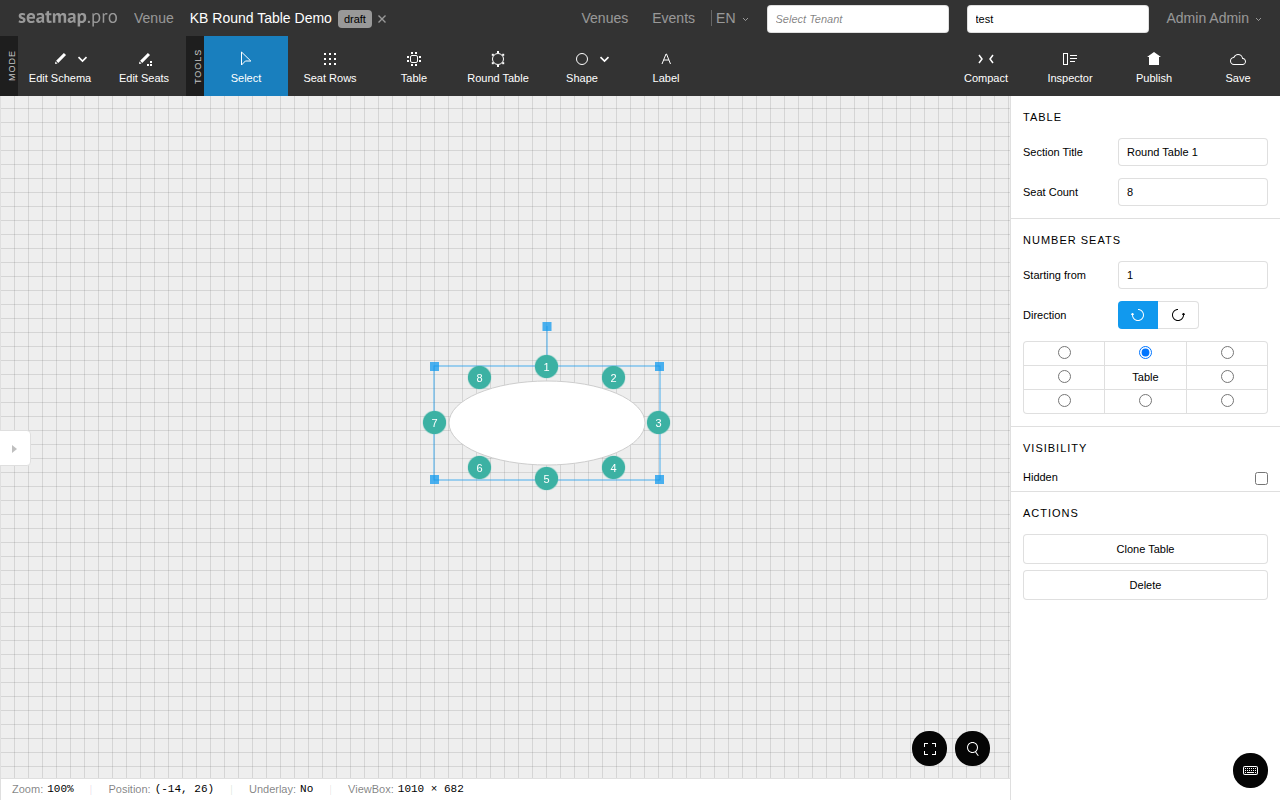
To create an elliptical (oval) table, select a round table and drag one of its resize handles to stretch the width or height independently. The table becomes an ellipse and seats automatically redistribute to maintain even spacing along the perimeter.
Rotation
Round and elliptical tables can be rotated freely. The seat arrangement rotates with the table, keeping the layout consistent.
Table editing mode
Round tables support the same editing mode as rectangular tables. Double-click a round table to enter edit mode, where you can select individual seats and set them as hidden, accessible, or marked. See Table Editing Mode for details.
Display modes
Each table has a display mode that controls how it appears in the editor and the booking page:
| Mode | Description |
|---|---|
| Round | Elliptical table outline with seats around the perimeter |
| Table | Rectangular table outline |
| None | No table outline – only seats are visible |