Managing access
Roles
In Editor, the following roles are available:
- User
- can access all the schemas of all the organizations the user belongs to (since a user can belong to multiple organizations)
- Admin
- can manage the users of one particular organization
- can view and edit the organization settings
- can access all the schemas of the organization
- Super admin
- can create organizations within one particular tenant
- can manage the users of all the organizations belonging to the tenant
- can access all the schemas of all the organizations belonging to the tenant
- Global admin
- can create new tenants
- can create organizations within tenants
- can manage the users of all the organizations of any tenant
- can access all the schemas of all the organizations of all the tenants
Creating an organization
To create an organization, you need to be a super admin or global admin.
- Select Admin Admin -> Admin Panel.
- Open the Organizations tab.
- Click Create Organization.
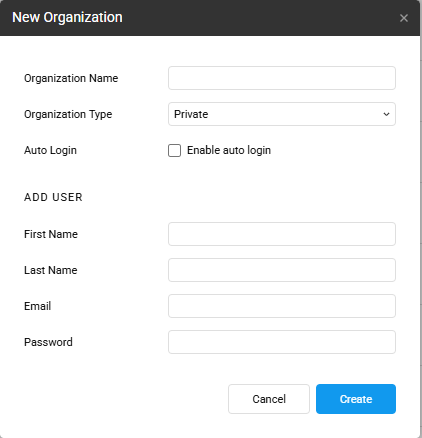
- In the opened window, specify
- organization name
- organization type:
privateorpublic. - enable auto login if you plan to use SSO
- Specify the admin user of the new organization. All fields are required:
- user’s first name
- user’s last name
- email address
- password
- Click Create.
If the email already belongs to an account, in any letter case, Editor does not create a second account. If you can manage that account, it becomes the admin of the new organization and keeps its password, so the password you entered is not used. Editor then says that the account already existed and shows no password for it. If that account is disabled, it stays disabled. A global admin can manage any account, and a super admin an account that belongs to an organization they administer, which includes every organization in their tenant. When the email matches more than one account, for example two that differ only in letter case, or belongs to any other account, Editor reports that an account with this email already exists and does not create the organization.
After an organization is created, you can:
- Edit its name.
- Edit its type.
The admin user is listed on the organization’s Users tab.
To enter the organization’s space, click Select.
Managing the organization settings
To be able to view and edit the organization settings, you need to be an admin.
- Select Admin Admin -> Organization Settings.
- Edit the organization name if required. Click Save.
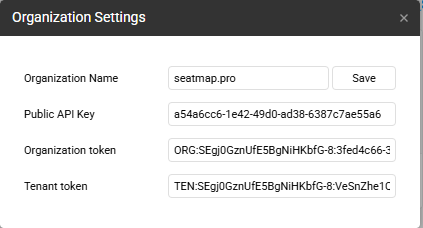
Also, in this window you can see the the following:
- Public API key - used in Booking Renderer.
- Secret API key - used in Seatmap.pro Booking API version2
- Tenant token - used in Seatmap.pro Booking API version2 and in Seatmap.pro management API
Creating a user
To create a user, you need to be an admin, super admin, or global admin.
- If you have access to more than one organization, select the required one either way:
- Admin Admin -> Admin Panel -> Organization name -> Select.
- Current organization name in the top right corner -> the Select Organization window -> Organization name -> Select.
- Click Admin Admin -> User Management.
- Specify:
- user’s first name
- user’s last name
- email address
- password
- Click Add User.
The user will be added to the currently opened organization.