Events Hub
The Events Hub is the central place for managing all events across your organization. It lets you view, filter, publish, archive, and restore events from a single table view.
Event lifecycle
Events move through three states:
DRAFT → PUBLISHED → ARCHIVED → DRAFT
- DRAFT — the event is not yet visible to bookers. Events created through the API default to DRAFT unless the caller explicitly sets a different status.
- PUBLISHED — the event is live and available for booking. Events created through the editor UI default to PUBLISHED.
- ARCHIVED — the event is closed and no longer available for booking. Archived events are not deleted and can be restored to DRAFT at any time.
Events Hub
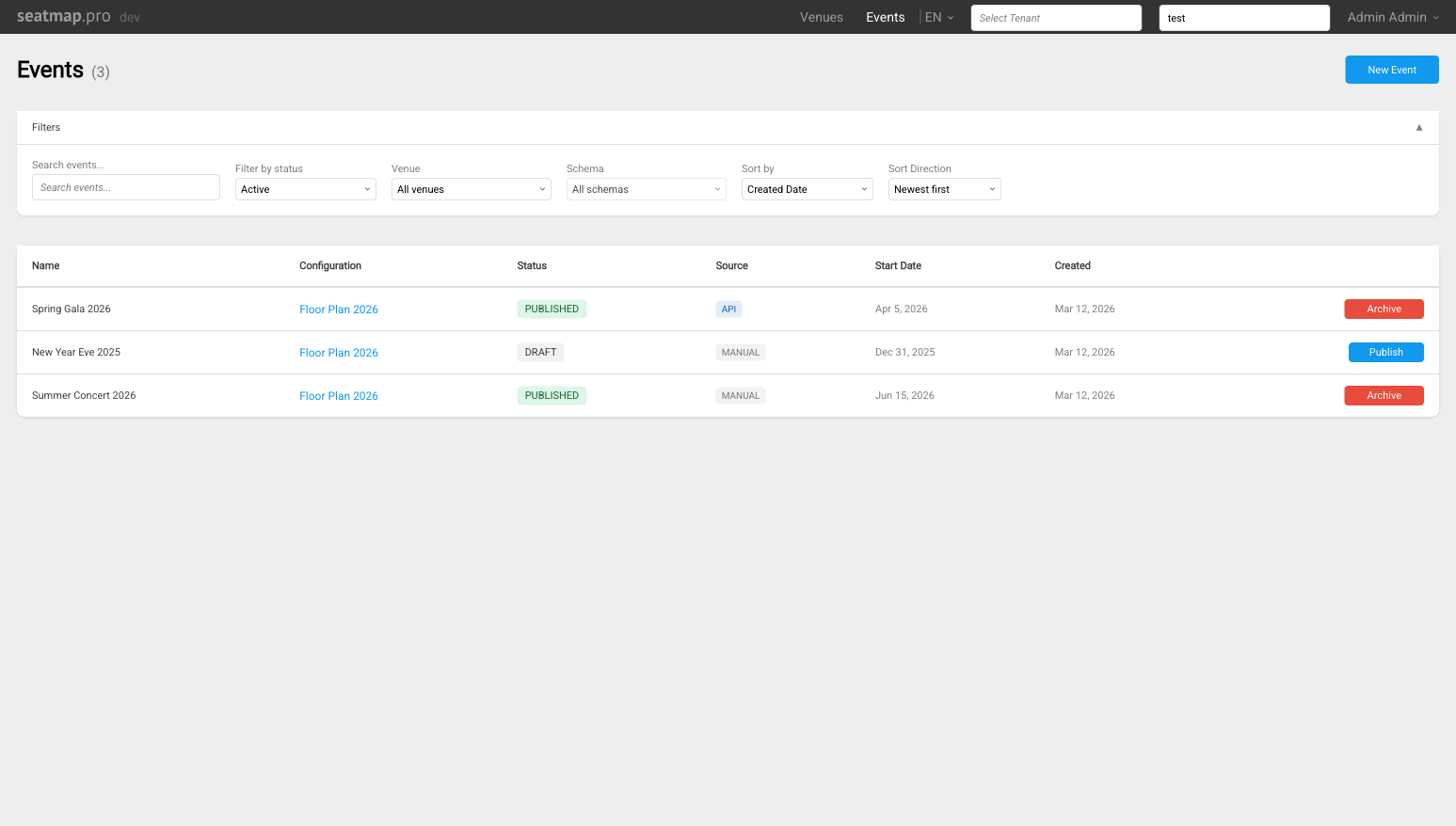
Navigate to the Events Hub at /app/events. The table lists all events in your organization with the following columns:
- Status badge — DRAFT, PUBLISHED, or ARCHIVED.
- Source badge — MANUAL (created in the editor UI) or API (created via the Booking Service API).
- Schema link — click the schema name to open that schema in the editor.
Filtering events
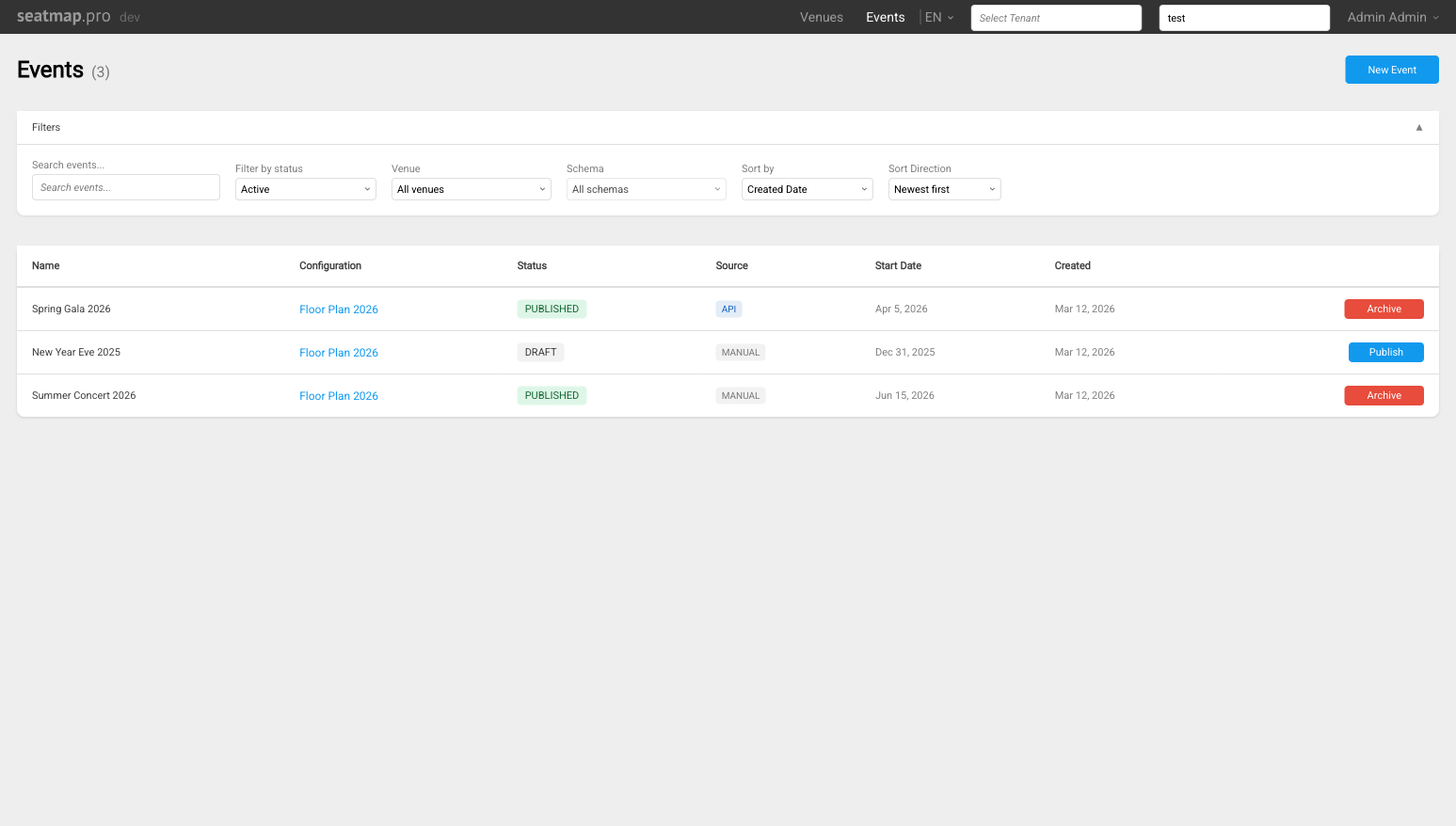
Use the filter controls at the top of the table to narrow the list:
- Status — filter by DRAFT, PUBLISHED, or ARCHIVED.
- Venue — filter by venue to show only events for a specific location.
Pagination
The event table supports pagination for organizations with many events. Use the pagination controls at the bottom of the table to navigate between pages.
Publishing an event
- Locate a DRAFT event in the Events Hub table.
- Click Publish in that event’s row.
- The status badge changes to PUBLISHED immediately.
Archiving an event
- Locate a PUBLISHED event in the Events Hub table.
- Click Archive in that event’s row.
- Confirm the action in the confirmation modal that appears.
- The status badge changes to ARCHIVED.
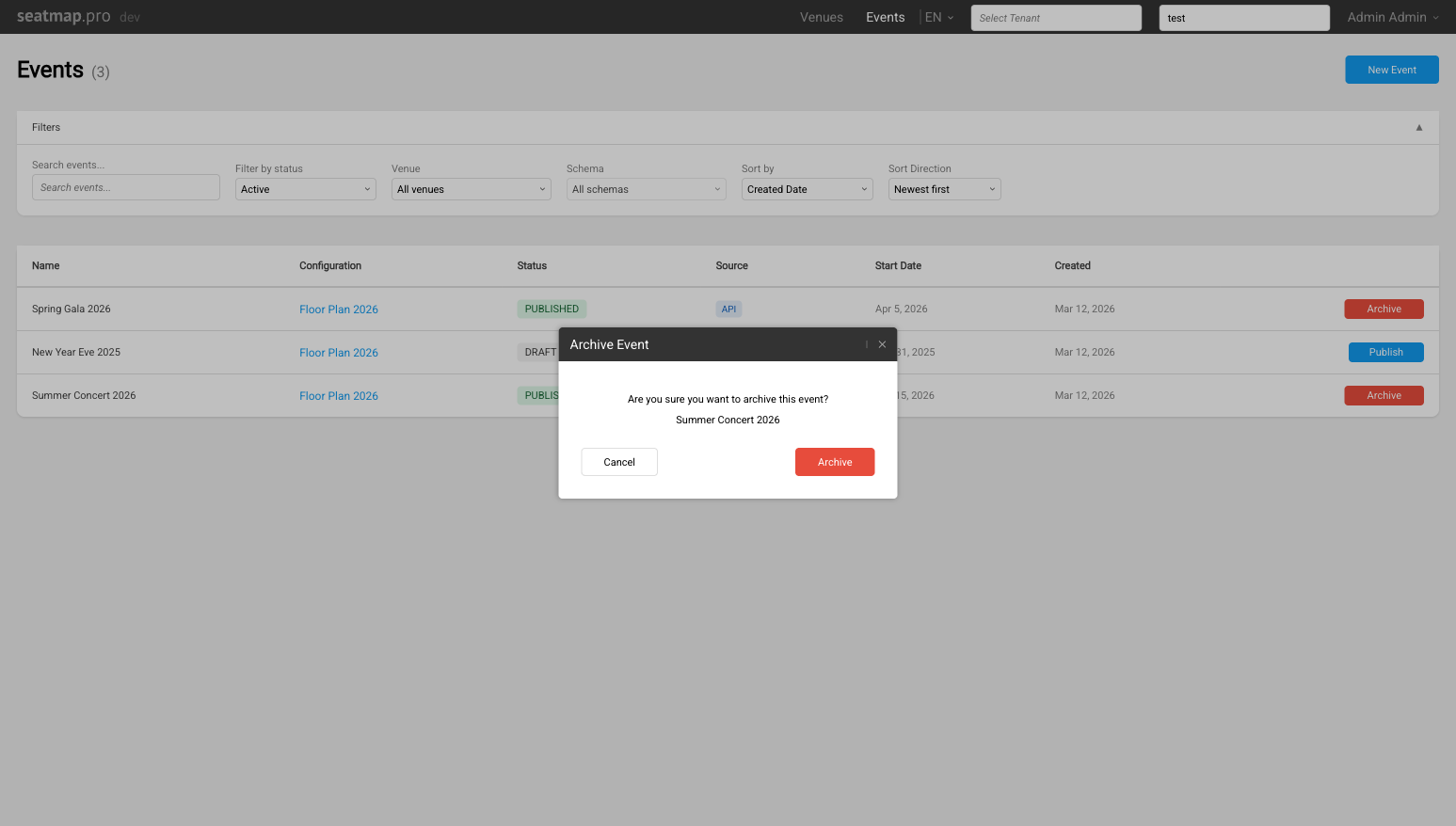
Archived events remain in the table and are not deleted. The confirmation modal appears only in the Events Hub table view. The Schema Events Modal (described below) archives events inline without a separate confirmation step.
Restoring an event
- Locate an ARCHIVED event in the Events Hub table.
- Click Restore in that event’s row.
- The status badge changes to DRAFT.
Schema Events Modal
The Schema Events Modal lets you manage events directly from within the schema editor, without leaving the editor view.
Opening the modal
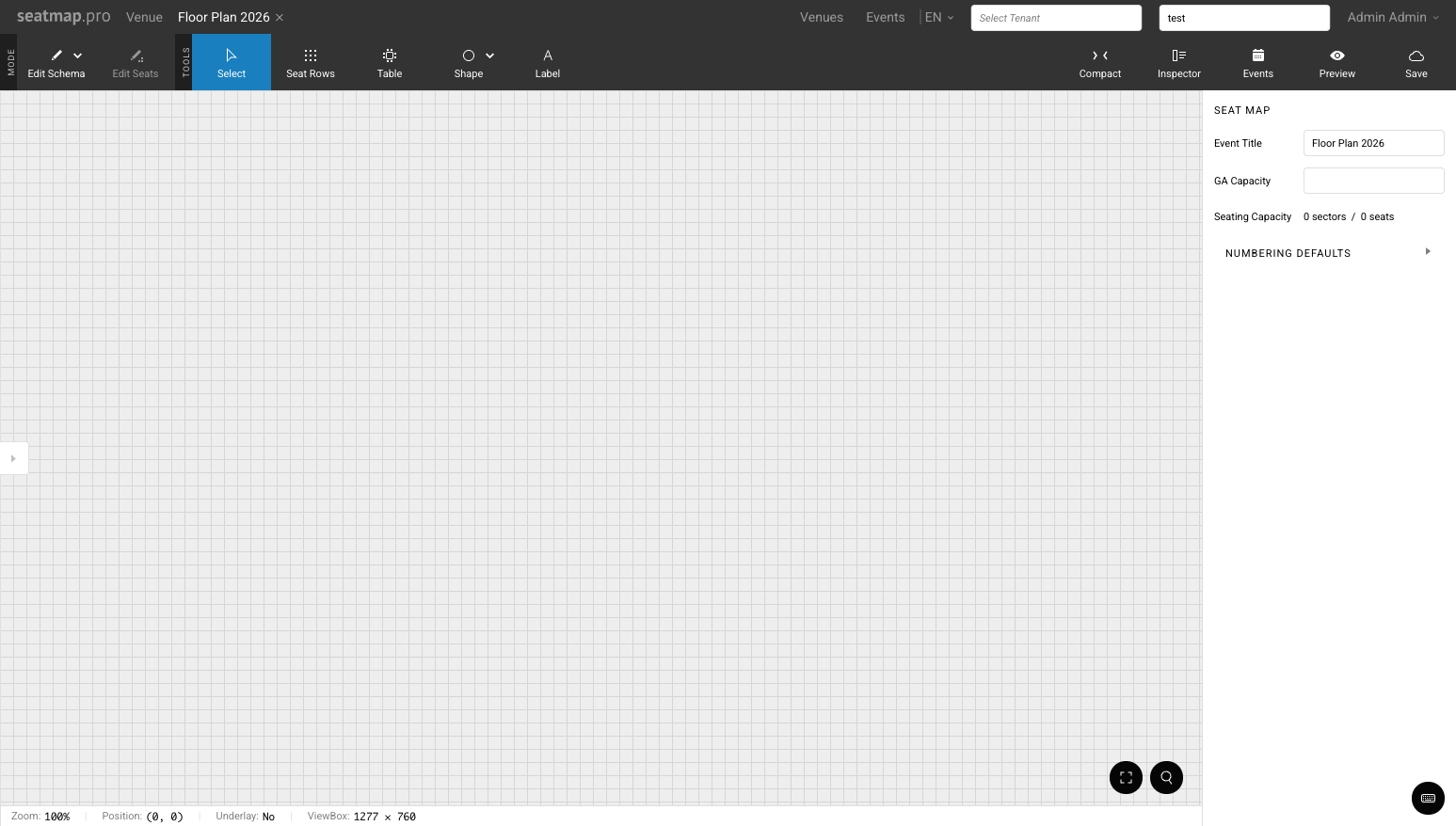
Click the Events button in the schema editor toolbar. The button is only visible when the schema has at least one event linked to it.
Using the modal
The modal lists all events linked to the current schema, each showing:
- Status badge (DRAFT, PUBLISHED, or ARCHIVED).
- Event dates.
- Action buttons: Publish, Archive, or Restore (depending on current status).
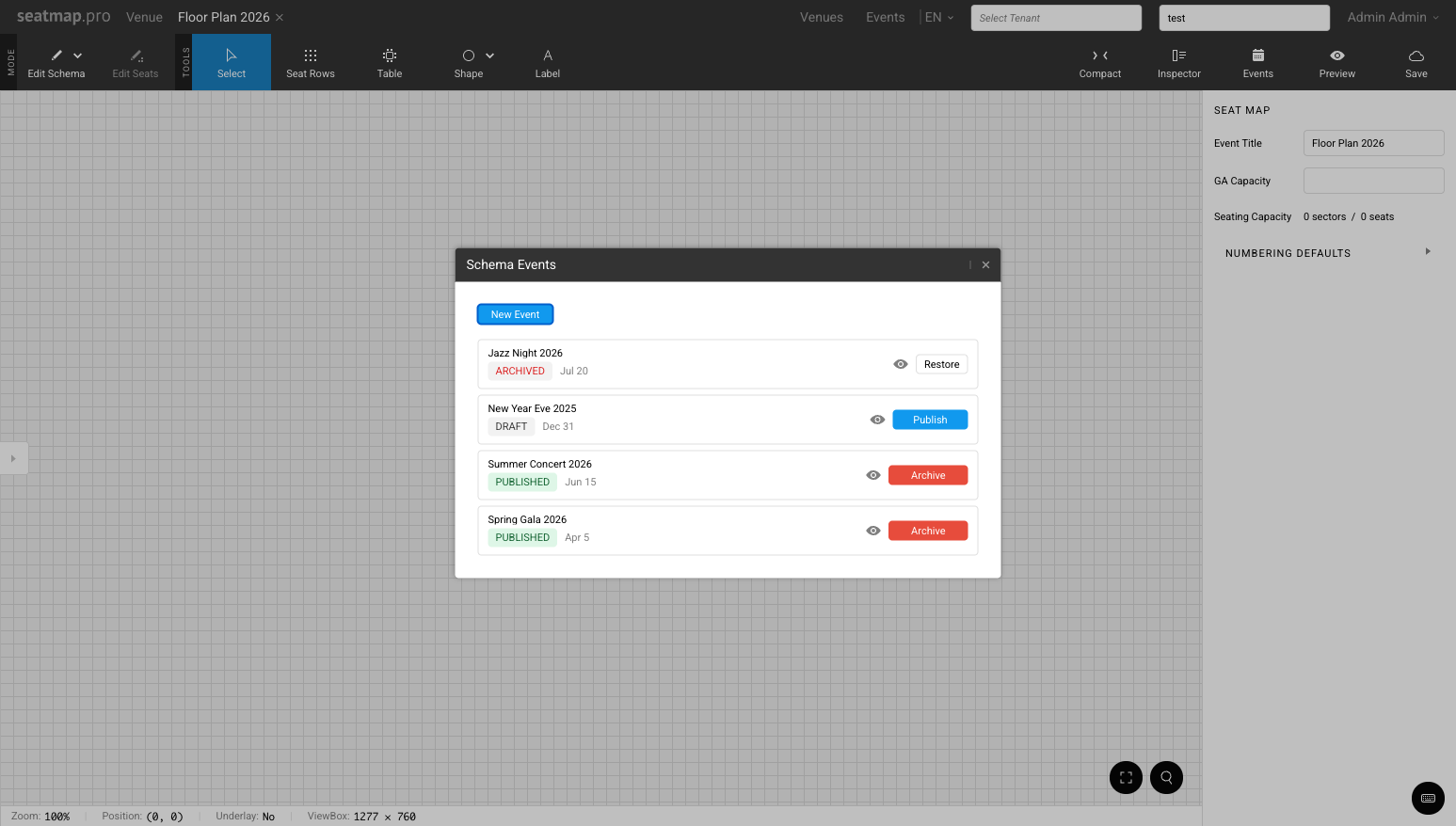
Actions in the modal take effect immediately without a separate confirmation step. To open a booking preview for a specific event, click the preview button in that event’s row — the preview opens as an inline modal embed within the page.
Opening an event in the editor
Click an event in the Events Hub to open its detail view, then choose Open in editor. The schema opens with that event already selected, so seat states, availability and prices you see on the canvas are the ones for that event – you do not have to pick it again once the editor has loaded.
The pre-selected editor view has its own address, /app/venues/{venueId}/schemas/{schemaId}/events/{eventId}, so you can bookmark it or share the link with a colleague and they land on the same event.
Global search opens events the same way: pressing Enter on an event result goes straight to the editor with that event selected.
Navigation
The Venues and Events links are always visible in the top navigation bar for authenticated users.