Row Label Alignment and Style
The venue editor offers two alignment modes for row labels, controlling whether labels follow individual row edges or line up neatly in a straight column. You can also set the color, size, font and weight of row labels for the whole map or per section.
Alignment modes
Per Row (default)
Each row’s labels sit next to the first and last seat in that row. If one row has fewer seats than another, its labels shift inward. This looks natural for uniform sections but may produce uneven label edges when rows have different widths.
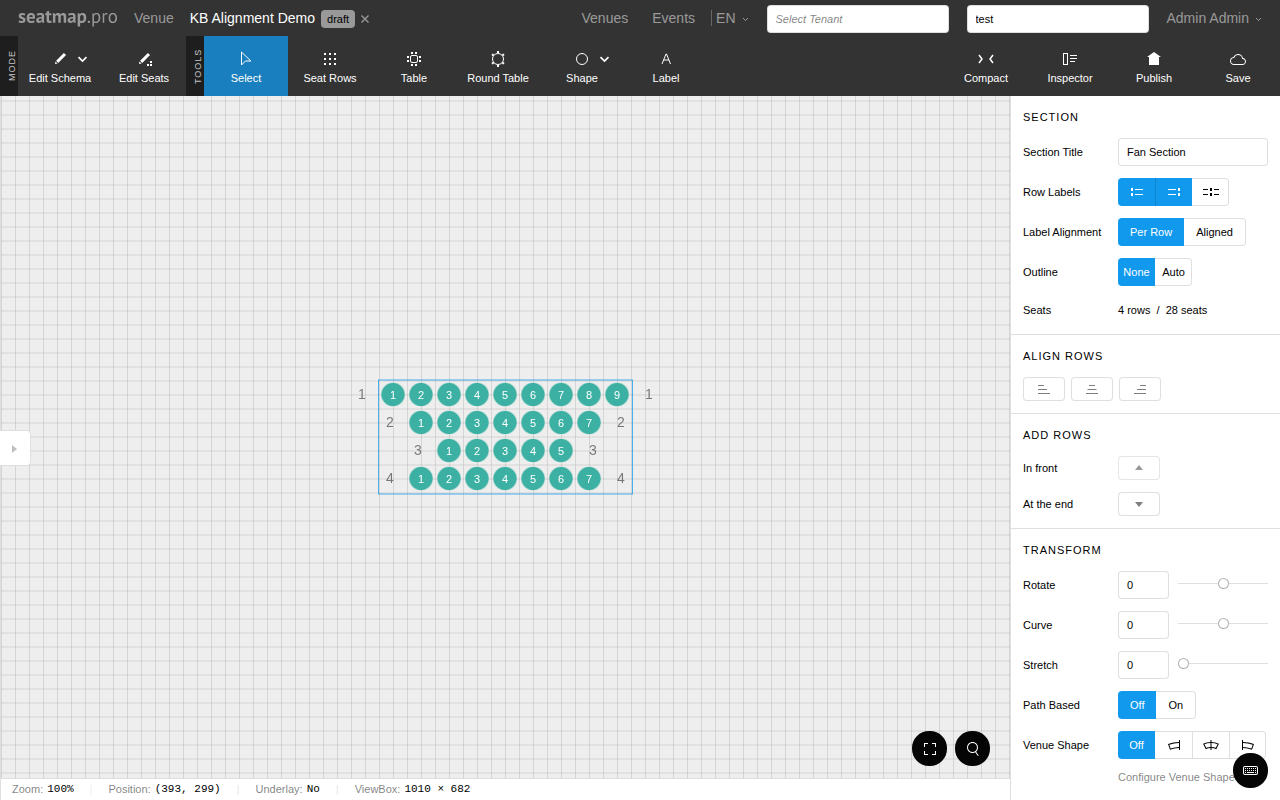
Aligned
All row labels within a section line up at the same horizontal position – determined by the widest row. This creates a clean, straight column of labels regardless of individual row widths.
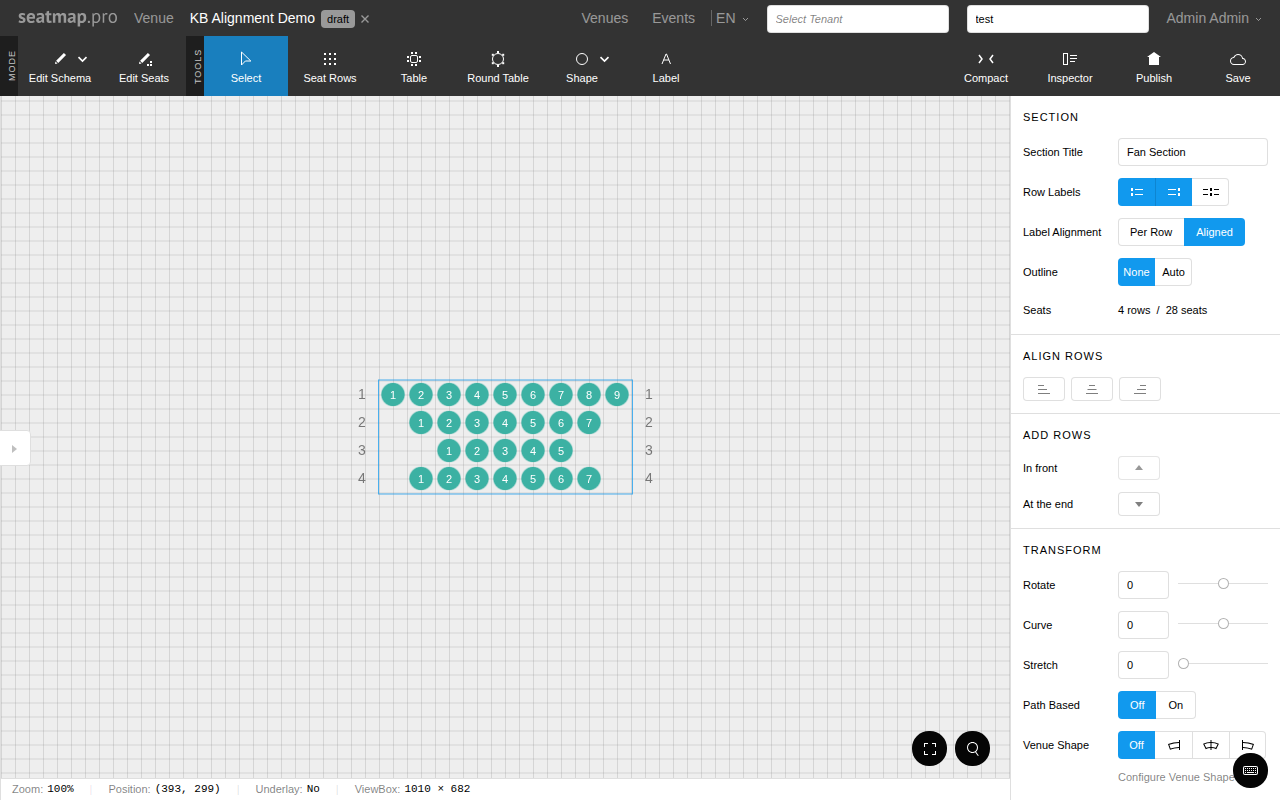
Switching alignment mode
- Select a section that has left or right row labels enabled.
- In the sidebar, locate the Label Alignment field in the section panel.
- Click Per Row or Aligned to switch modes.
The alignment control only appears when left or right row labels are turned on for the section.
When to use each mode
| Mode | Best for |
|---|---|
| Per Row | Uniform sections where all rows have the same number of seats |
| Aligned | Fan-shaped sections, triangular layouts, or any section where rows have different widths – keeps labels tidy and easy to read |
Aligned mode is especially useful in venues where seats have been removed from individual rows, creating uneven edges that would otherwise cause labels to jump around.
Row label style
Row labels take a color, a size, a font and a bold weight. Set them once for the whole map in the Row Label Style group of the Seat Map panel, which the sidebar shows in Edit Schema mode when nothing is selected. Every section with row labels follows that style.
| Field | Values |
|---|---|
| Label Color | Any color. The default is semi-transparent black. |
| Label Size | 6 to 32. The default is 14. |
| Label Font | Arial (the default), Verdana, Tahoma, Trebuchet MS, Georgia, Times New Roman or Courier New. |
| Bold Labels | On or off. The default is off. |
Reset label style returns the map to the default style.
A section that has row labels shows the same fields in its own panel. A field you change there overrides the map style for that section only, and the other fields keep following the map. Use map style removes the section’s overrides.
The Booking Renderer shows the labels in the chosen color, size and weight. It draws Arial, Times New Roman and Courier New with fonts of the same letter widths, and Verdana, Tahoma, Trebuchet MS and Georgia with close open-source equivalents that can run slightly narrower or wider than in the editor. It shows the style the map had at its last save. An automatic section outline widens on its labelled sides so that larger labels stay inside it; sections with Path Based on keep their current outline.