Per-Row Seat Spacing
The venue editor lets you control the horizontal distance between seats on a per-row basis. Use the spacing slider in the sidebar to spread seats apart or bring them closer together, and see the result instantly on the canvas.
Using the spacing slider
- Select one or more seats in a straight section.
- In the sidebar, locate the Seat Spacing panel.
- Drag the slider or type a value to adjust the spacing.
The canvas updates in real time as you move the slider.
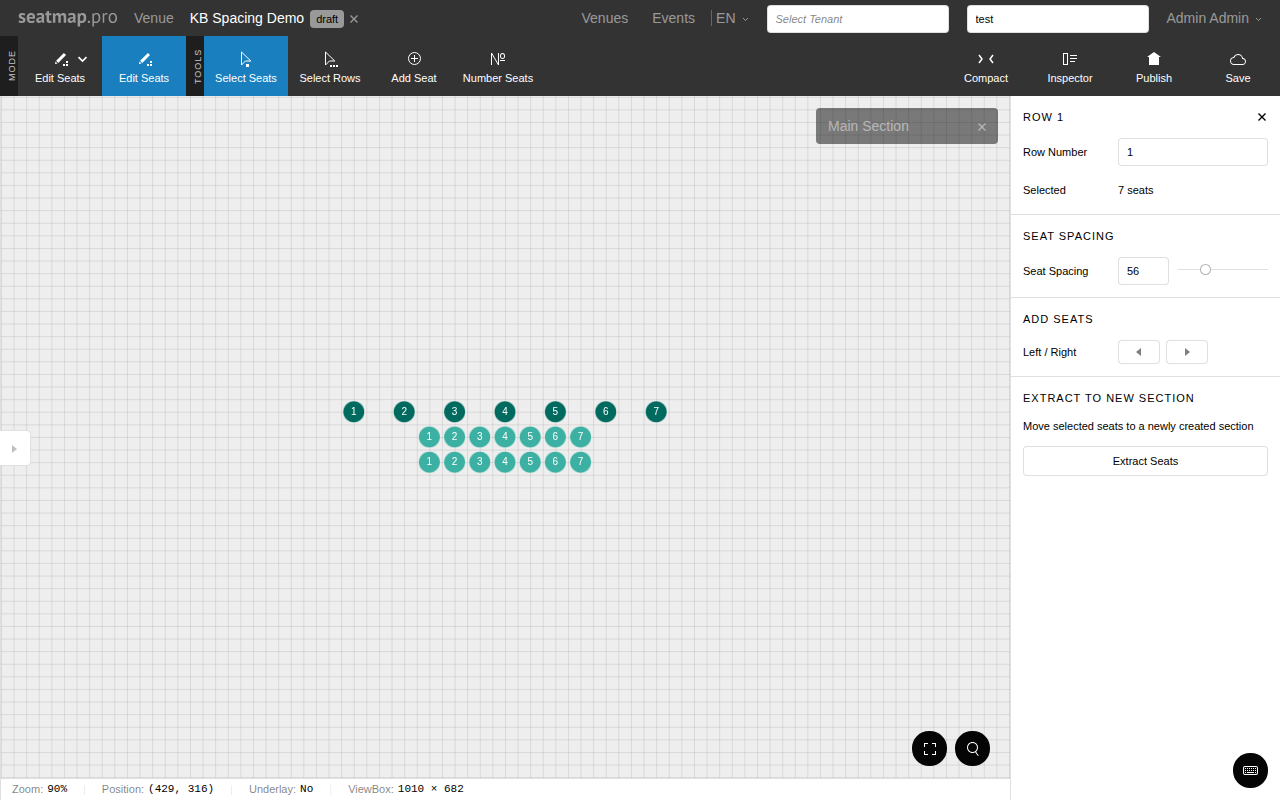
Spacing range
The slider ranges from a minimum that prevents seats from overlapping up to a wide spacing for layouts that need more breathing room. The default value works well for most venues.
Per-row control
Spacing is set independently for each row. Different rows within the same section can have different spacing values – useful for creating staggered or varied layouts. When you select seats from multiple rows, the slider shows the average spacing.
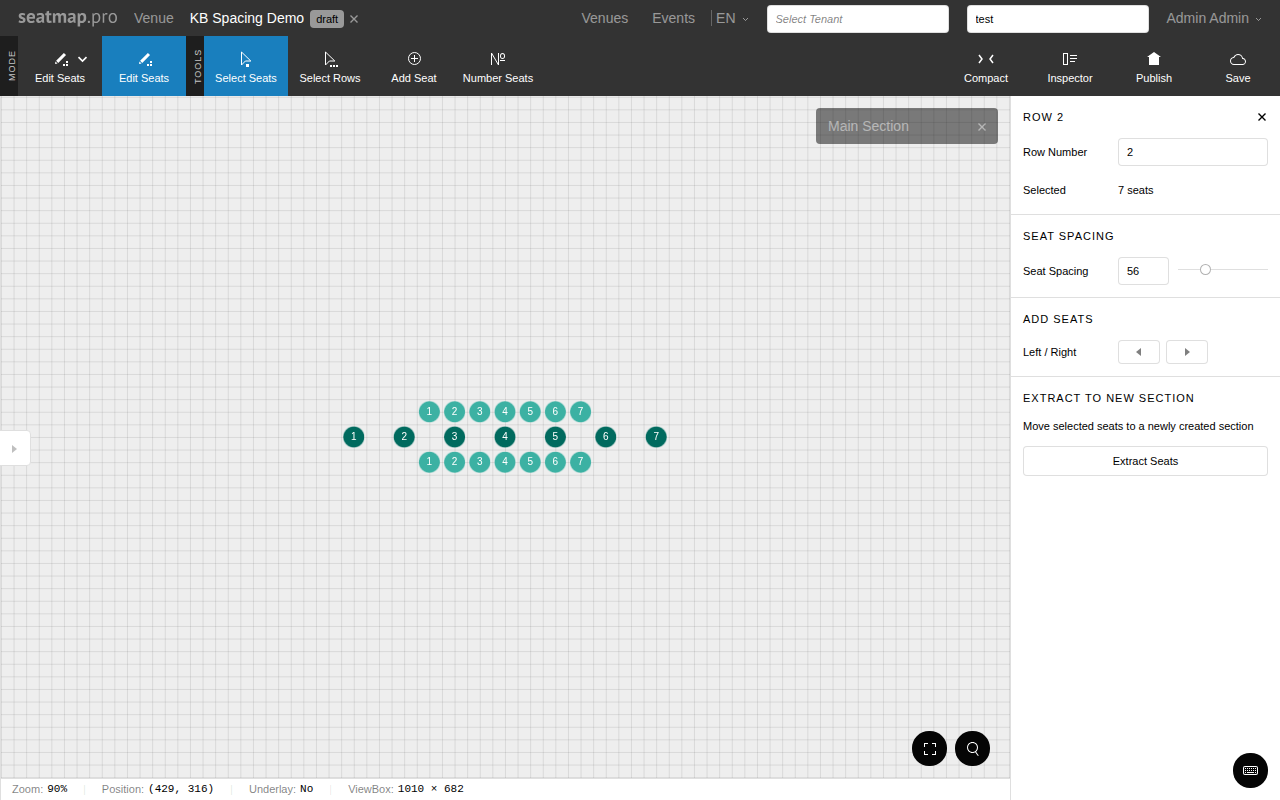
When the slider is disabled
The spacing slider is disabled when:
- No seats are selected.
- The selected section is curved. On curved sections, seat positions are determined by the curve shape and cannot be adjusted with the slider.
Adding seats to a spaced row
When you add new seats to a row that already has custom spacing, the new seats automatically use the same spacing value, keeping the row consistent.