
Introducing our new Customer Care portal
We are thrilled to announce the launch of our Seatmap Pro Customer Care Portal, designed to make it easier than ever for you to submit feature requests and
Introduction to SVGs To understand why SVGs are appealing for custom tools like event seatmaps, let's first review what SVGs are.
Introduction to SVGs
To understand why SVGs are appealing for custom tools like event seatmaps, let’s first review what SVGs are. SVG stands for Scalable Vector Graphics. It’s an XML-based vector image format for describing two-dimensional graphics.
The key characteristics of SVGs are:
These traits make SVGs a powerful format for many use cases, from simple icons to complex data visualizations. For our seatmap tool, SVGs provide some key benefits.
Benefits of SVGs for Seatmaps
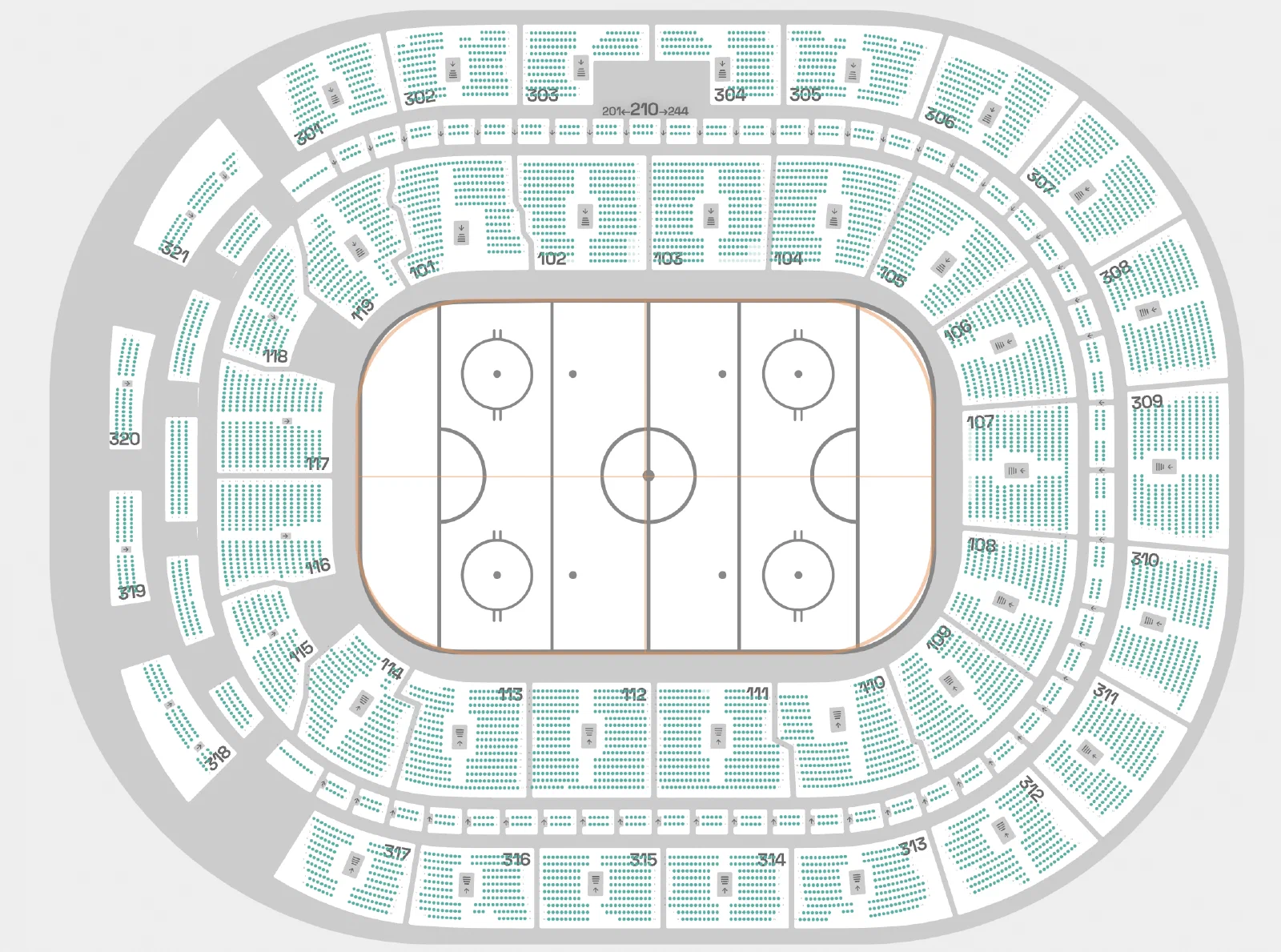
Imagine you’re building a web-based seatmap tool that lets users view and select seats for a concert venue. Using SVGs for the seatmap graphic has several advantages:
So in theory, SVGs seem ideal for this use case. However, our seatmap tool needs to handle very large and complex venue schemas, and this is where we start to hit scalability issues with SVGs.
Challenges with Complex SVGs
The main problem is that as the SVG seatmap gets more complex, with thousands of seat elements and lots of metadata, the SVG file gets massive. We’re talking about megabytes of XML text defining the map.
Browsers have to parse all that text and build an internal representation of the graphic in memory. This takes time and processing power. Then the browser has to rasterize the SVG - convert it into pixels to display on screen. For very complex SVGs, this rasterization step becomes a bottleneck.
Users on lower-powered devices may see their browsers freeze up as it struggles to display the massive SVG. And every pan or zoom action requires re-rasterizing the visible portion of the graphic, leading to a sluggish, unresponsive UI.
There are some ways to optimize SVGs, like breaking them up into smaller sub-graphics. But for our use case, with seatmaps that may contain tens of thousands of seats, we found that SVGs simply weren’t performant enough in the browser.
Switching to Server-Side PNGs
To keep our seatmaps performant even for the most complex venues, we decided to move the SVG rasterization step from the client to the server. Here’s how it works:
With this approach, the browser no longer has to parse and rasterize a massive SVG. Instead, it just displays a simple PNG background which takes no time at all. Pan and zoom actions just update the position of the background image.
The tradeoff is that we have to store many PNGs for each venue, at different zoom levels. But PNGs compress well, and storage is cheap. The benefit in performance and user experience is well worth it.
The Case of the Bloated Logo
One of our customers was creating a seatmap for a medium-sized venue of about 6,000 seats. The seatmap SVG was relatively complex, with each seat being its own element, but it was still loading and rendering reasonably quickly.
However, the customer decided to add a company logo to the seatmap. They found a high-resolution TIFF of their logo and embedded it into the SVG using the <image> element. They figured a single logo wouldn’t make much difference in the grand scheme of things.
But when they loaded the updated SVG, they were surprised to find that it took significantly longer to render. The file size had jumped from a manageable few hundred KB to several MB, just by adding this one logo.
Confused, they reached out to our support team, wondering why adding a simple logo would cause such a drastic change in performance.
We took a look at their SVG and quickly identified the issue. While the logo looked like a simple image on the screen, the PNG file they used was actually very large in dimensions and resolution. This high-resolution image data was being embedded directly into the SVG, bloating its file size.
We suggested a few solutions:
The customer opted for a combination of the first and third options. They recreated their logo as an SVG and embedded that, which kept the file size much lower. They also used a version of the logo optimized for the display size, rather than an unnecessarily high-resolution version.
With these changes, their seatmap SVG loaded quickly again, even with the logo included.
This case illustrates how even seemingly small additions to an SVG can have significant performance impacts if not done carefully. It’s important to always consider the size and efficiency of any embedded images or elements in an SVG, not just the complexity of the SVG structure itself.
Conclusion
In the world of SVGs, the devil is truly in the details. A single inefficient element, whether it’s an unnecessarily high-resolution embedded image or an overly complex path, can bring even the most carefully crafted SVG to its knees.
The key, as always, is to test and profile your SVGs as you build them. Don’t just look at the overall complexity, but also examine each individual element. Are your embedded images optimized for the size they’ll be displayed at? Are you using efficient SVG elements and paths? Every little optimization can make a difference, especially as your SVGs scale up in size and complexity.
And if you do find your SVGs are becoming too unwieldy, don’t be afraid to consider alternative solutions. As we found with our seatmap tool, sometimes a hybrid approach, using SVGs for some parts and raster images for others, can provide the best balance of performance and flexibility.
The goal, in the end, is to create graphics that are both visually compelling and performant. By understanding the strengths and limitations of SVGs, and by being mindful of efficiency as you build, you can create complex, interactive graphics that delight your users without bogging down their browsers.
I hope these real-world examples help illustrate some of the key considerations and potential pitfalls when working with SVGs at scale. Let me know if you have any other questions or insights to share!
We are thrilled to announce the launch of our Seatmap Pro Customer Care Portal, designed to make it easier than ever for you to submit feature requests and
We’re excited to unveil Seatmap 1.39.0, packed with powerful features designed to enhance interactivity, streamline integrations, and deliver a more polished
The latest update to Seatmap introduces two exciting features that will make managing your events and layouts more intuitive and efficient.